How to Divide Your Season Into Sections
Premium Pick’em and Confidence pools can divide the season into separate Standings Segments.
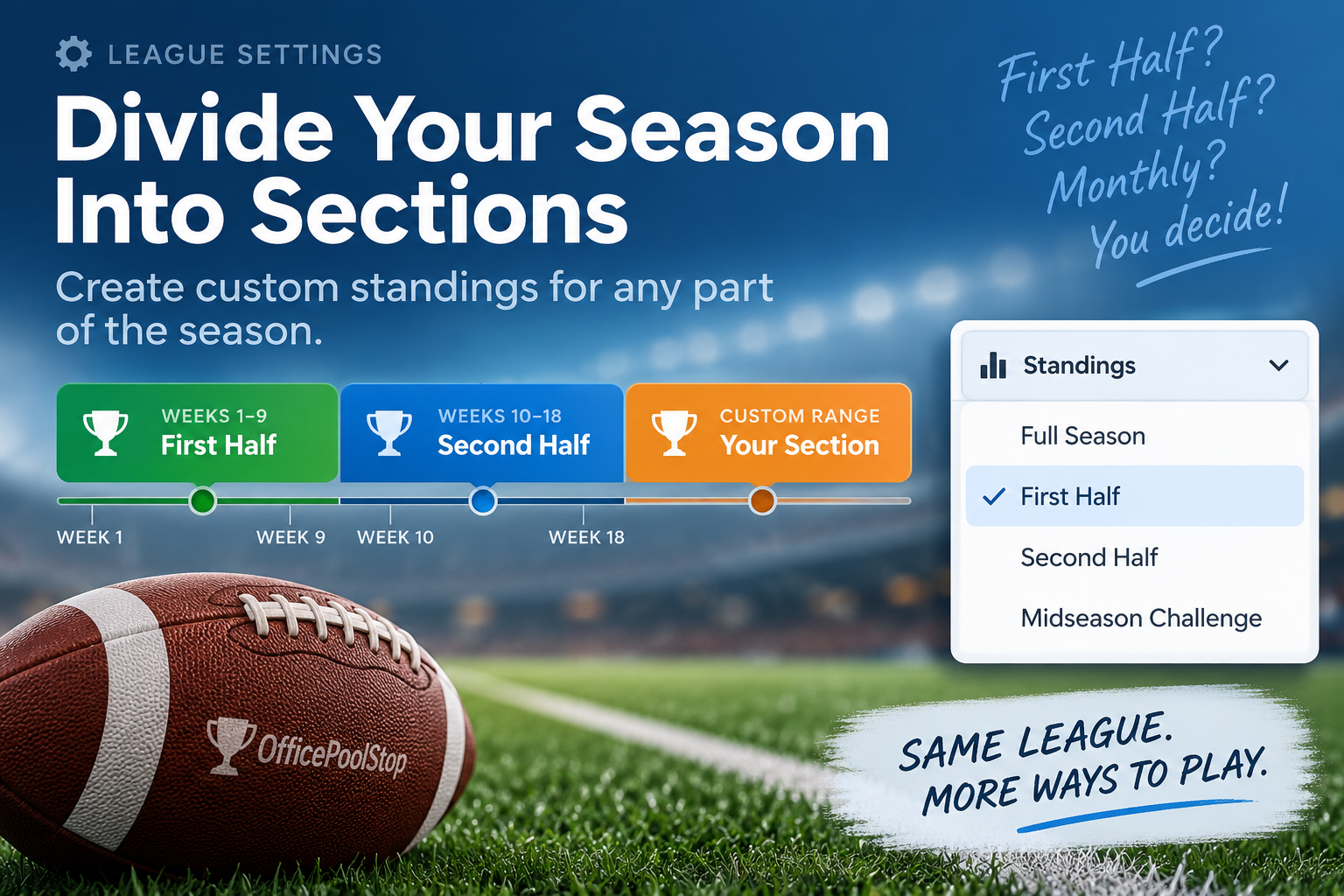
Standings Segments let you create additional leaderboards for specific portions of the season, such as a First Half, Second Half, monthly competition, or Second Chance standings.
They do not create a separate league or change your players, picks, schedule, or scoring rules. Your regular Full Season standings are always preserved.
How to Create a Standings Segment
As League Manager:
Go to your league Settings.
Open the Advanced settings for your Pick’em pool.
Scroll down to the Standings Segments section.
Enter a name for the new segment.
Enter the Start Week and End Week.
Click Add Segment.
For example, you could create:
First Half
Start Week: 1
End Week: 9
and:
Second Half
Start Week: 10
End Week: 18
You can create multiple segments, and the week ranges are allowed to overlap.
For example, you could have:
Weeks 1–9 — First Half
Weeks 10–18 — Second Half
Weeks 5–12 — Midseason Challenge
Each segment calculates its standings using only the results from the weeks included in that range.
Viewing Segment Standings
Once at least one Standings Segment has been created, a Standings dropdown appears on the league's Season Standings page.
Players can choose between:
Full Season
Any Standings Segments the manager has created
Selecting a segment immediately recalculates the standings using only that segment's week range.
For example, selecting Second Half for Weeks 10–18 will show standings based only on results beginning with Week 10. Results from Weeks 1–9 will not be included in that view.
The regular Full Season standings remain unchanged and can always be selected from the same dropdown.
What Happens During an Active Segment?
If the current season is within one of your configured segments, OfficePoolStop can automatically display that active segment when the Standings page is opened.
For example, if you have:
First Half: Weeks 1–9
Second Half: Weeks 10–18
and the league is currently through Week 12, the Second Half standings can be shown automatically.
Players can still use the Standings dropdown to switch back to Full Season or another segment.
The selection is remembered for the remainder of that browser session.
What If a Segment Hasn't Started Yet?
You can create a future segment before its first week begins.
The segment will still be available in the Standings dropdown, but until results exist for that range, players will appear with no segment results yet.
For example, if you create a Second Half segment beginning in Week 10 while the league is still in Week 6, OfficePoolStop will indicate that the segment starts in Week 10.
Can I Edit or Delete a Segment?
Yes.
Return to the Standings Segments section in your league's Advanced settings.
For an existing segment you can:
Change the segment name
Change its Start Week
Change its End Week
Click Save to update it
Click Delete to remove it
Deleting a segment does not delete any player picks, scores, or full-season results. It only removes that alternate standings view.
Important Notes
Standings Segments are an alternate leaderboard view only.
They do not:
Reset player picks
Reset season totals
Change scoring rules
Change the league schedule
Create a separate player roster
Affect the normal Full Season standings
They simply calculate standings using results from the weeks you specify.
Standings Segments are currently available as a Premium league feature.
.png)